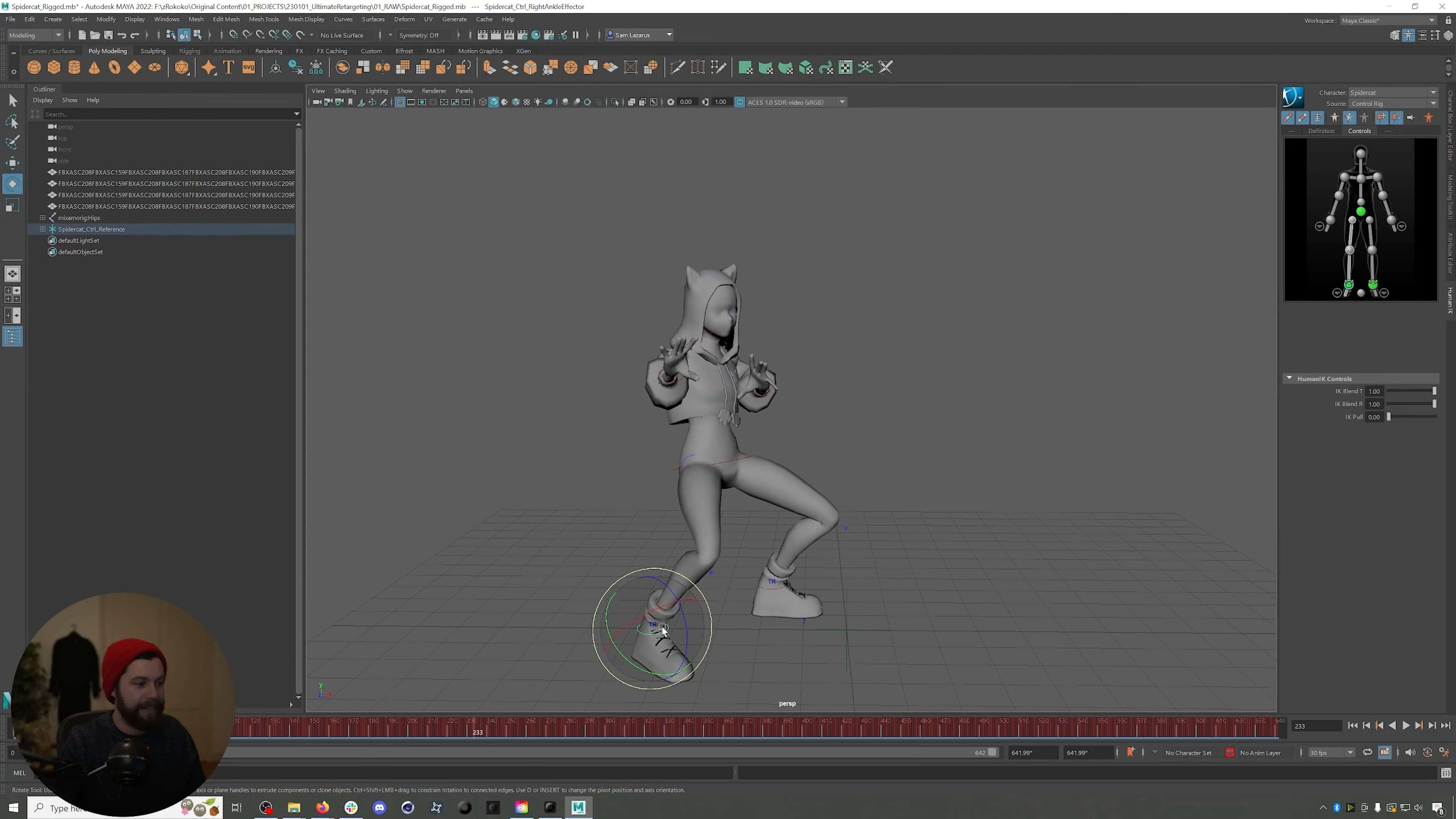
How to use Rokoko motion capture with Warudo for VTubing?
The short answer: Warudo is a free VTubing app on Steam with a built-in Rokoko Receiver. Stream from Rokoko Studio, choose Rokoko in Warudo's setup wizard and match the Profile Name to your actor, and your face, body and fingers come through live. With Rokoko Smartgloves II, a Coil Pro and a webcam, you can VTube without a suit.
TL;DR
- Warudo is free on Steam for independent VTubers.
- Setup is Warudo's Basic setup wizard plus one name change.
- Blueprints let you choose which tracker drives each bone.
- Suitless option: Smartgloves II and Coil Pro for hands and arms, a webcam for the head.
Why use Warudo with Rokoko?
Warudo reads Rokoko data directly through its Rokoko Receiver, so body, face and fingers work without extra retargeting. In the video, Sam calls it "one of the smoothest VTubing workflows I have ever seen."
What do you need?
- Warudo: free on Steam. Independent VTubers can stream for free, and corporate VTubers need Warudo Pro.
- Rokoko Studio: Plus plan or higher to stream to third-party tools, and Pro for Face Capture (see our pricing page).
- Full setup: Smartsuit Pro II, Smartgloves and Rokoko Face Capture, webcam capture or Iphone capture.
- Face tracking: an iPhone with iFacialMocap (most common), Rokoko Face Capture, or a webcam.
- Suitless setup: Smartgloves II, Coil Pro and a webcam/iphone.
You can test everything with a recording in Rokoko Studio. Warudo treats it the same as live capture.
Before you start: prepare your avatar and suit
Is your avatar ready for Warudo?
Your avatar has to be a Warudo character before any tracking works. If you're starting from a VRChat avatar, convert it in Unity with the Warudo SDK.
If Warudo's Setup Character step leaves your avatar upside down or with a warped body, its bones aren't normalized. Unity shows this as "Normalized bones: False". VRChat handles avatars like this, but Warudo's tracking doesn't. Warudo's docs recommend the Denormalized Avatar Exporter for characters you didn't model yourself, so export with that instead. For iPhone face tracking, the avatar also needs ARKit blendshapes, or a mapping to them.
How do you prepare the Smartsuit?
- Power the hub from a power bank on the ⚡ cable. The side USB-C cable is only for configuring it, and the hub won't power on from your PC.
- Use 5 GHz Wi-Fi. The hub's Wi-Fi LED turns green on 5 GHz.
- Connect the gloves to the suit's sleeve cables. They're powered by the suit, so they drop off Wi-Fi when unplugged from USB.
- Wear the head sensor on the headband at the back of your head, or your avatar's head won't turn.
- Check every sensor panel is inside its pocket. A panel left hanging out can freeze a whole arm. If that happens, tuck it back in and restart the suit by unplugging the battery.
- Calibrate in Rokoko Studio before you open Warudo.
How do you stream a full Rokoko mocap into Warudo?
Turn on streaming in Rokoko Studio, run Warudo's Basic setup with Rokoko for face and pose tracking, then match the Profile Name.
- In Rokoko Studio, open the streaming tab and activate streaming to Unity.
- In Warudo, click "Get started" on Basic setup, choose your avatar and select "I know what I want to use".
- Set face tracking to iFacialMocap if you use an iPhone, or to Rokoko if you use Rokoko Face Capture. Set pose tracking (body, arms and fingers) to Rokoko, then click OK.
- Using an iPhone on a head rig? In the iFacialMocap Receiver, turn off head movement so the suit's head sensor drives the head, and set BlendShape Mapping to ARKit. A phone on a head rig moves with your head, so it can't track head rotation.
- Open Rokoko Receiver and change Profile Name from the default "Newton" to your actor name in Rokoko Studio.
- Calibrate in Warudo while standing in the same pose you used in Rokoko Studio.
Why is my avatar stuck in a T-pose?
Usually the Profile Name does not match your Rokoko Studio actor name yet. Once it does, the face, eyes, mouth, body and fingers start moving. You can then adjust the hips, mirror the tracking and tune blendshape sensitivity. If it still won't move, check these:
- The name reset itself. Re-running Warudo's setup changes the Profile Name back to "Newton". Change it back to the exact name of your actor in Rokoko Studio.
- The receiver says "Inactive" or "Tracker not started" with the right name. That points to your avatar's bone setup, for example a missing Hips bone. Switch to Warudo's default character: if that moves, fix the avatar, not Rokoko.
- Unity is open. Close it while streaming, because it can take the port Rokoko streams to (14043).
- Windows Firewall is blocking Warudo. Allow it on your network.
What are Warudo blueprints?
Blueprints are Warudo's node graphs for face tracking and pose tracking. They show which tracker drives each joint of your avatar, and you can rewire them. If you have used Unreal Engine or Houdini, the layout will feel familiar. Being able to rewire joints is what lets you combine Rokoko with a webcam.
Can you VTube with Rokoko without a suit?
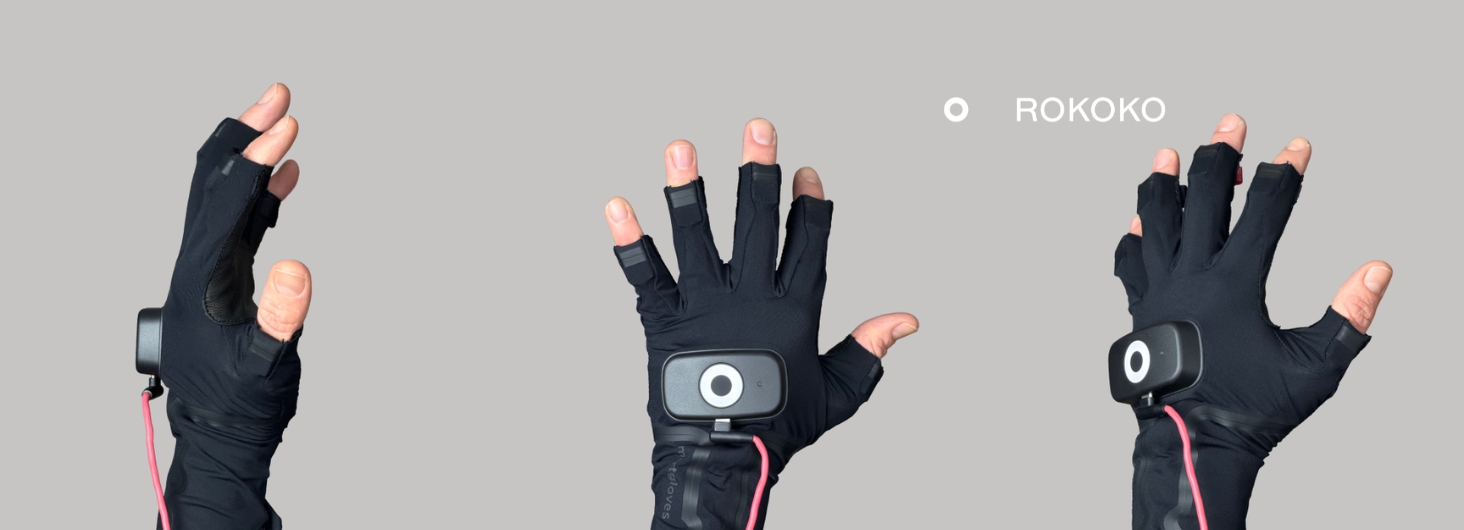
Yes. Smartgloves II with a Coil Pro track your hands and arms, and a webcam tracks your head through MediaPipe.
Coil Pro gives your gloves absolute positioning with EMF and IMU tracking, so hand tracking is not affected by occlusion. In the video, Sam's hand movements also turn his avatar's upper body, and tracking continues when he ducks off screen.
How do you set up the suitless workflow?
- Stream your Smartgloves II and Coil Pro data from Rokoko Studio.
- In Warudo's Basic setup, set face tracking to MediaPipe (your webcam) with head and body movements enabled, and pose tracking to Rokoko.
- Match the Profile Name in Rokoko Receiver. The hands and arms now move, but the head does not, because it is still assigned to Rokoko.
- In the Rokoko Receiver blueprint, break the connection to the head.
- In the MediaPipe blueprint, find the node that lists all joints and connect it to the head.
- Calibrate both the MediaPipe tracker and the Rokoko Receiver.
For polish, adjust offsets for the thumbs and for avatars with longer arms than yours.
Side-by-side comparison
Which setup should you choose?
Choose the full Rokoko setup if:
- You want full-body tracking.
- You want everything from one system with no blueprint changes.
- If you don’t have a coil, and only need your upper body, for example when streaming seated? In Warudo, set "Track Full Body" to No for Rokoko and choose only the upper body under "Tracked Body Parts", or break the leg connections in the blueprint.
Choose the suitless setup if:
- You want to skip putting on a suit.
- You mainly need hands, arms and face.
- Works best with the coil.
Final thoughts
Warudo and Rokoko work together with very little setup, and blueprints let you mix in a webcam when you do not want to suit up. Watch the full tutorial to follow along, or talk to our team about the right hardware for your streams.


.jpeg)
.jpg)