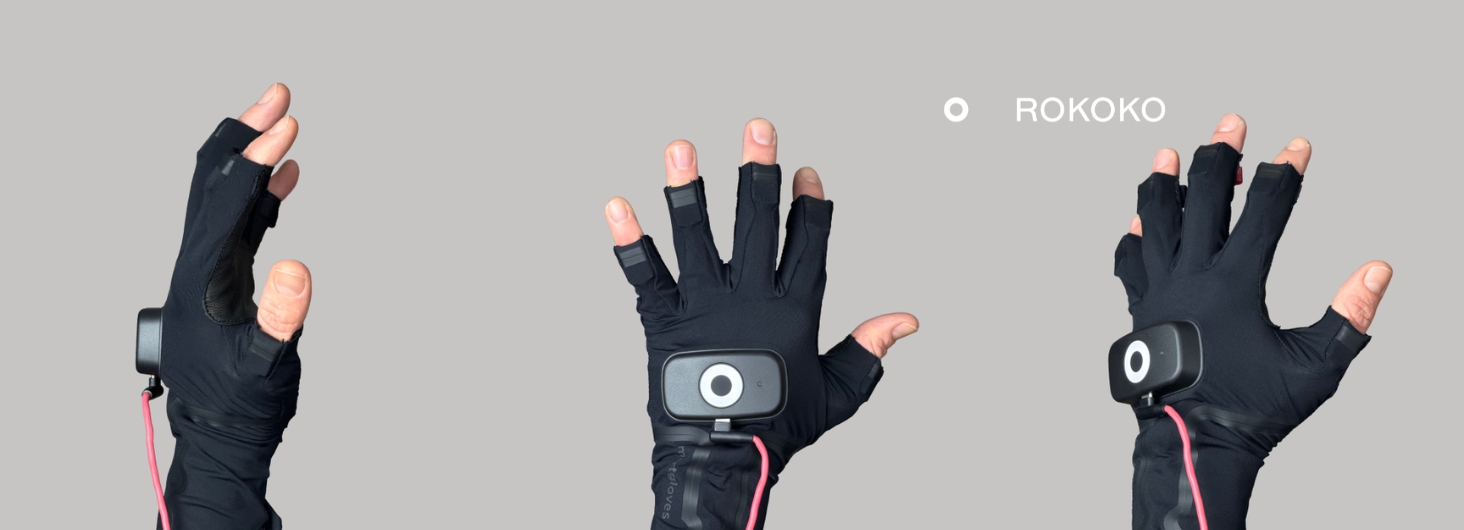
How to use Rokoko motion capture with Warudo for VTubing?
The short answer: Warudo is a free VTubing app on Steam with a built-in Rokoko Receiver. Stream your body and fingers from Rokoko Studio, track your face with an iPhone (or Rokoko Face Capture), and match the Profile Name to your Rokoko actor. With Rokoko Smartgloves II, a Coil Pro and a webcam or iPhone, you can VTube without a suit.
TL;DR
- Warudo is free on Steam for independent VTubers.
- Setup is Warudo's Basic setup wizard plus one name change, after a few minutes of suit prep.
- Most VTubers track their face with an iPhone. Rokoko Face Capture works too.
- Blueprints let you choose which tracker drives each bone.
- Suitless option: Smartgloves II and Coil Pro for hands and arms, a webcam for the head.
Why use Warudo with Rokoko?
Warudo reads Rokoko data directly through its Rokoko Receiver, so body, face and fingers work without extra retargeting. In the video, Sam calls it "one of the smoothest VTubing workflows I have ever seen."
What do you need?
- Warudo: free on Steam. Independent VTubers can stream for free, and corporate VTubers need Warudo Pro.
- Rokoko Studio: Plus plan or higher to stream to third-party tools, and Pro for Face Capture (see our pricing page).
- Full setup: Smartsuit Pro II, Smartgloves and Rokoko Face Capture, webcam capture or Iphone capture.
- Face tracking: an iPhone with iFacialMocap (most common), Rokoko Face Capture, or a webcam.
- Suitless setup: Smartgloves II, Coil Pro and a webcam/iphone.
You can test everything with a recording in Rokoko Studio. Warudo treats it the same as live capture.
Before you start: prepare your avatar and suit
Is your avatar ready for Warudo?
Your avatar has to be a Warudo character before any tracking works. If you're starting from a VRChat avatar, convert it in Unity with the Warudo SDK.
If Warudo's Setup Character step leaves your avatar upside down or with a warped body, its bones aren't normalized. Unity shows this as "Normalized bones: False". VRChat handles avatars like this, but Warudo's tracking doesn't. Warudo's docs recommend the Denormalized Avatar Exporter for characters you didn't model yourself, so export with that instead. For iPhone face tracking, the avatar also needs ARKit blendshapes, or a mapping to them.
How do you prepare the Smartsuit?
- Power the hub from a power bank on the ⚡ cable. The side USB-C cable is only for configuring it, and the hub won't power on from your PC.
- Use 5 GHz Wi-Fi. The hub's Wi-Fi LED turns green on 5 GHz.
- Connect the gloves to the suit's sleeve cables. They're powered by the suit, so they drop off Wi-Fi when unplugged from USB.
- Wear the head sensor on the headband at the back of your head, or your avatar's head won't turn.
- Check every sensor panel is inside its pocket. A panel left hanging out can freeze a whole arm. If that happens, tuck it back in and restart the suit by unplugging the battery.
- Calibrate in Rokoko Studio before you open Warudo.
How do you stream a full Rokoko mocap into Warudo?
Turn on streaming in Rokoko Studio, run Warudo's Basic setup with your face tracker and Rokoko for pose tracking, then match the Profile Name.
- In Rokoko Studio, open the streaming tab and activate streaming to Unity.
- In Warudo, click "Get started" on Basic setup, choose your avatar and select "I know what I want to use".
- Set face tracking to iFacialMocap if you use an iPhone, or to Rokoko if you use Rokoko Face Capture. Set pose tracking (body, arms and fingers) to Rokoko, then click OK.
- Using an iPhone on a head rig? In the iFacialMocap Receiver, turn off head movement so the suit's head sensor drives the head, and set BlendShape Mapping to ARKit. A phone on a head rig moves with your head, so it can't track head rotation.
- Open Rokoko Receiver and change Profile Name from the default "Newton" to your actor name in Rokoko Studio.
- Calibrate in Warudo while standing in the same pose you used in Rokoko Studio.
Why is my avatar stuck in a T-pose?
Usually the Profile Name does not match your Rokoko Studio actor name yet. Once it does, the face, eyes, mouth, body and fingers start moving. You can then adjust the hips, mirror the tracking and tune blendshape sensitivity. If it still won't move, check these:
- The name reset itself. Re-running Warudo's setup changes the Profile Name back to "Newton". Change it back to the exact name of your actor in Rokoko Studio.
- The receiver says "Inactive" or "Tracker not started" with the right name. That points to your avatar's bone setup, for example a missing Hips bone. Switch to Warudo's default character: if that moves, fix the avatar, not Rokoko.
- Unity is open. Close it while streaming, because it can take the port Rokoko streams to (14043).
- Windows Firewall is blocking Warudo. Allow it on your network.
What are Warudo blueprints?
Blueprints are Warudo's node graphs for face tracking and pose tracking. They show which tracker drives each joint of your avatar, and you can rewire them.
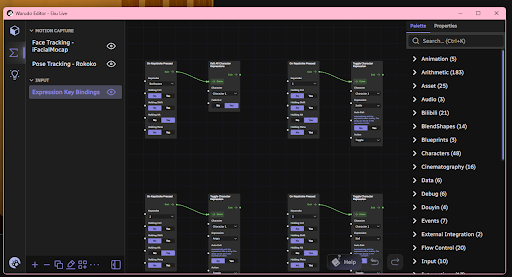
If you have used Unreal Engine or Houdini, the layout will feel familiar. Being able to rewire joints is what lets you combine Rokoko with a webcam.
Can you VTube with Rokoko without a suit?
Yes. Smartgloves II with a Coil Pro track your hands and arms, and a webcam tracks your head through MediaPipe.
Coil Pro gives your gloves absolute positioning with EMF and IMU tracking, so hand tracking is not affected by occlusion. In the video, Sam's hand movements also turn his avatar's upper body, and tracking continues when he ducks off screen.
How do you set up the suitless workflow?
- Stream your Smartgloves II and Coil Pro data from Rokoko Studio.
- In Warudo's Basic setup, set face tracking to MediaPipe (your webcam) with head and body movements enabled, and pose tracking to Rokoko.
- Match the Profile Name in Rokoko Receiver. The hands and arms now move, but the head does not, because it is still assigned to Rokoko.
- In the Rokoko Receiver blueprint, break the connection to the head.
- In the MediaPipe blueprint, find the node that lists all joints and connect it to the head.
- Calibrate both the MediaPipe tracker and the Rokoko Receiver.
For polish, adjust offsets for the thumbs and for avatars with longer arms than yours.
Side-by-side comparison
Which setup should you choose?
Choose the full Rokoko setup if:
- You want full-body tracking.
- You want everything from one system with no blueprint changes.
Choose the suitless setup if:
- You want to skip putting on a suit.
- You mainly need hands, arms and face.
- Works best with the coil.
Streaming seated without a Coil?
If you only need your upper body, wear the suit and set "Track Full Body" to No for Rokoko in Warudo. Then choose only the upper body under "Tracked Body Parts", or break the leg connections in the blueprint.
My setup: a BOOTH avatar made for VRChat
I tested this setup with Eku, an avatar I bought on BOOTH, plus a face tracking add-on made for her. Both were made for VRChat, so getting them into Warudo took more than the steps above. Here's what I used and what I ran into, in case your avatar comes from the same place.
What I used
- Avatar: Eku by sep-neko-ya (BOOTH), version 1.2.0.
- Face tracking add-on: Hash's Eku Face Tracking Add-on, made for VRChat face tracking.
- Hair: MariYuri's Messy Long Hair (BOOTH).
- Avatar prep: VRChat Creator Companion, Unity 2022.3.22f1, the VRChat SDK, Modular Avatar, NDMF and lilToon.
- Warudo export: Unity 2021.3.45f2, the Warudo SDK, lilToon and the Denormalized Avatar Exporter by hai-vr.
- Tracking: Rokoko Studio, Smartsuit Pro II, Smartgloves II, and iFacialMocap on an iPhone 13 on a head rig.
What I ran into
- The add-on only patches one avatar version. Its patcher works with Eku 1.2.0 only, so I had to use that version instead of the newest one.
- I needed VRChat tools without using VRChat. Modular Avatar and NDMF combine the avatar, add-on and hair into one baked model, and they install through the VRChat Creator Companion.
- Two Unity projects. One for building the avatar, and a second with the Warudo SDK to export it.
- Windows "path too long" errors. Keep your Unity projects in a short folder path, like C:\Warudo.
- Missing VRChat scripts. VRChat components show up as missing scripts in the Warudo project and block saving, so I removed them.
- An upside-down avatar with a warped body. Warudo's Setup Character didn't work on Eku's bones. The Denormalized Avatar Exporter fixed it.
- Rokoko said "Inactive". This one took the longest to solve; see below.
- The iPhone didn't move the face. The add-on names its blendshapes the VRChat way (Unified Expressions), not with the ARKit names an iPhone sends. I added ARKit-named copies with a small Unity script. A few shapes, like mouth press and dimple, don't exist on the model.
- VRChat-only features don't carry over. The add-on's expression effects run on VRChat's animator, so I rebuilt smile, angry, sad and cringe as Warudo expressions on hotkeys.
- Physics changed. Warudo converts VRChat PhysBones automatically, but I had to tune them for chest, hair and tail movement.
- Ears and tail wouldn't move from a blueprint. The physics kept resetting them. A Tail asset and Pendulum Physics worked instead.
- Suit hiccups. One arm froze because I'd left a sensor panel hanging outside the suit. I tucked it back into its pocket and restarted the suit by unplugging the battery. The head also didn't turn until I wore the head sensor.
How I fixed Rokoko showing "Inactive"
Rokoko Studio was streaming, but Warudo's Rokoko Receiver stayed "Inactive" and said "Tracker not started". Here's what I checked, in order:
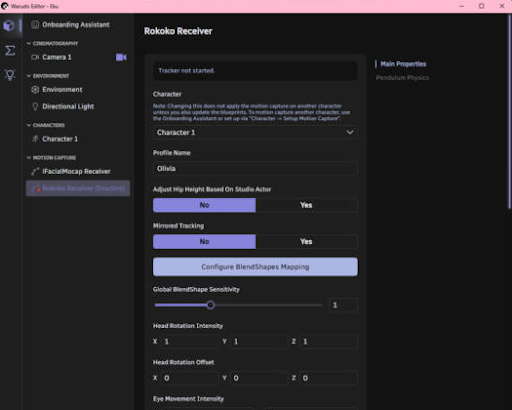
- Profile Name. It had reset to "Newton" after I re-ran Warudo's setup, so I changed it back to my actor's name. Still inactive.
- Windows Firewall. I made sure Warudo was allowed on my network. Still inactive.
- Unity. I closed it, because it can hold the port Rokoko streams to (14043), and restarted my PC. Still inactive.
- Warudo's default character. Switching to it made the receiver start straight away, so the problem was my avatar, not Rokoko.
- Warudo's log file. It showed the avatar was missing its Hips bone. Warudo's Setup Character had built a new bone map for Eku that left the Hips out.
The fix happened in the Unity project I use to build Warudo characters (the one with the Warudo SDK):
- Swap the bone map. Warudo's usual way to turn an avatar into a character is its Unity menu option Warudo → Setup Character. That tool had made a new bone map for Eku (Unity calls it an "Avatar"), and this new one was missing the Hips. I selected Eku, found the Animator component, and changed its Avatar field to Eku FTAvatar, the bone map that came with the face tracking add-on's model.
- Build with a different exporter. Rokoko now worked, but Eku was upside down with a warped body, because her bones aren't normalized (Unity had warned "Normalized bones: False"). Warudo's docs recommend the Denormalized Avatar Exporter for this case, and it replaces Warudo → Setup Character and Warudo → Build Mod. Here's how I used it:
- Download the latest .unitypackage from the tool's GitHub releases page (under Assets on the newest release). Close Warudo, open the Warudo Unity project, and import the package.
- Rename your old Character prefab (for example to Character_old), because the tool overwrites anything with that name.
- Make a new mod with no spaces in its name: Warudo → New Mod, named EkuCasual rather than "Eku Casual".
- In the Hierarchy, right-click → Create Empty and name it Exporter. With it selected, click Add Component in the Inspector and add Denormalized Avatar Exporter.
- Drag your avatar from the Hierarchy into the exporter's Avatar Root box, so it shows the avatar's name instead of "None".
- Click Build Warudo mod.
- Load the new file. I copied the new EkuCasual.warudo file into Warudo's Characters folder, set Character 1's source to it, checked the Rokoko Receiver's Profile Name was still my actor's name, and calibrated. The receiver started, and Eku moved the right way up.
Final thoughts
Warudo and Rokoko work together with very little setup, and blueprints let you mix in a webcam when you do not want to suit up. Watch the full tutorial to follow along, or talk to our team about the right hardware for your streams.
Frequently asked questions
Is Warudo free?
Yes. Warudo is free on Steam, including streaming for independent VTubers who own their avatar IP. Corporate VTubers need Warudo Pro.
Does Warudo support Rokoko motion capture?
Yes. Warudo has a built-in Rokoko Receiver for body, face and finger data streamed from Rokoko Studio.
Why is my avatar not moving in Warudo?
Check that streaming is on in Rokoko Studio and that the Profile Name in Warudo's Rokoko Receiver matches your actor name. Re-running Warudo's setup resets it to "Newton". If it still won't move, see "Why is my avatar stuck in a T-pose?" above.
Can I VTube with Rokoko Smartgloves without a suit?
Yes. Rokoko Smartgloves II with a Coil Pro track your hands and arms, and a webcam can drive your head through Warudo's MediaPipe tracking.
Which Rokoko Studio plan do I need for Warudo?
You need Rokoko Studio Plus or higher to stream to Warudo. You only need Pro if you use Rokoko Face Capture. With an iPhone for your face, Plus is enough.